---
url: https://nsh.dev/docs/design-guides
description: "Product and interaction design guidance for apps built with Native Shell: hierarchy, color and tokens, spacing, density, components, interaction states, overlays, motion, data-heavy views, interface copy, and platform fit."
---
# Design Guides
Use this guide before choosing components or writing layout code for an app built with Native Shell. It records the
product judgment GPUI Kit accumulated through years of desktop work, carried over to NSH: an interface should feel
native, restrained, precise, and understandable without guesswork.
This is a normative guide. **Must** identifies a correctness or ecosystem constraint, **should** is the default that
needs a concrete reason to override, and **may** is an optional technique. The [Elements](https://nsh.dev/elements.md) and
[API](https://nsh.dev/modules.md) pages remain the authority for individual props and methods.
The rules build on behavior in `nsh/base` (`nsh_base` in Rust), the theme and its tokens, and the interaction each
platform's users already know. NSH renders with each platform's own UI and leaves the look to the app: `nsh/base`'s
components bring behavior, state, focus and accessibility, and every color, size, radius and spacing comes from the
app's own components, so these rules guide the app's design system. shadcn/ui
contributes useful methods (open code, composition, and dependable defaults) but does not determine how an NSH app
should look. When influences conflict, preserve the platform's behavior and the interaction people already understand.
## Design thesis
Build interfaces that feel native, quiet, and precise. Let content, hierarchy, and interaction carry the experience;
decoration should support them rather than compete with them.
1. **Clarity before personality.** Make the primary task and next action clear before adding brand expression.
2. **Composition before invention.** Start with established components and compose them into product-specific
workflows. Create a new primitive only when its behavior is genuinely new.
3. **Tokens before values.** Colors, radii, typography, and spacing should form a system. Avoid isolated literals that
cannot respond to themes. See [Styling](https://nsh.dev/docs/styling.md), [Tailwind](https://nsh.dev/docs/tailwind.md) and [the theme](https://nsh.dev/docs/rust.md#theme).
4. **Platform before web convention.** Preserve keyboard access, window chrome, menus, dense data views, resizable
regions, and persistent navigation on the desktops, and the system's headers, back gesture, alerts and touch
targets on phones and tablets, where the task benefits from them.
5. **State must be visible.** Hover, pressed, focus, selection, disabled, loading, validation, and destructive states
need distinct and consistent treatment.
6. **Geometry explains containment.** Radii, insets, and boundaries should describe one coherent hierarchy, even where
surfaces overlap.
7. **Feedback reflects reality.** Loading, tooltips, and motion should clarify a real state or transition, not add
ceremony to an immediate action.
## Learning from Shadcn
Shadcn's most useful contribution is not a particular border color. It is a way of building a system:
- own the top layer of the interface instead of fighting a sealed abstraction;
- compose small, predictable parts into product-specific components;
- provide defaults that already form one visual language;
- keep the code and composition legible to both people and AI;
- separate behavior primitives from the styled layer.
NSH applies those ideas through the split between the primitives of `nsh`, the unstyled base components of
`nsh/base`, and the styled layer, which belongs to the app ([Three layers](https://nsh.dev/docs/architecture.md#three-layers)).
Applications build their components on `nsh/base`, in TSX or in the app's Rust crate; reusable behavior belongs in
`nsh/base`, and visual policy stays above it.
Do not copy these web assumptions blindly:
| Web habit | NSH default |
| --- | --- |
| Pointing-hand cursor on every button | Default cursor; pointing hand (`cursor-pointer`) for links |
| Page navigation as the main structure | Persistent windows, panes, sidebars, tabs, and menus on the desktops; a `NavStack` with the system's back on phones |
| Browser focus and scrolling as a fallback | Explicit focus ownership and region-owned scrolling (`Scroll`, `List`) |
| Mobile-first single column | One column on phones, a resizable shell with a defined minimum window size on the desktops |
| Hover-revealed critical actions | Keyboard-, touch- and pointer-reachable actions that do not depend on hover |
| A row of hover-only icon buttons | A visible primary action plus `Menu` or `ContextMenu` for secondary commands |
| Link-styled text for application commands | A `Button` in the app's default, outline, or ghost style; link styling only for URLs, web resources, or email addresses |
| Large touch density everywhere | Touch-sized targets on touch screens; medium density with a pointer, compact only where information work benefits |
| A drawn header and alert card on every platform | The system's header and `AlertDialog` on iOS and Android; the page's `header` slot on the desktops and the web |
| CSS overrides across descendants | The app's components, their parts, and the theme's tokens |
## Start from the task
Before drawing a screen, write down:
- the user's primary task;
- the object being viewed or changed;
- the actions that must remain immediately available;
- the information required to make a decision;
- empty, loading, error, offline, read-only, and permission-denied states;
- the keyboard, touch and screen-reader path through the workflow;
- where the app is shown: on its own, or inside a host app.
Organize the screen around those answers. Do not begin with a dashboard grid or a component catalogue. A good interface
exposes the user's mental model: documents, accounts, projects, messages, settings, or another stable object—not the
internal service architecture.
Design the primary task before distributing controls. Its visual weight, location, and information depth should match
its importance to the product. A core result must not be reduced to a small count, an icon in a corner, or a weak
footer action while secondary content consumes the page. When a result set is the product's main value, consider a
summary region or card that exposes the count, representative results, meaningful state, and a clear next action.
For every proposed action, name its visible object, current state, scope, and result. If the interface does not show
or clearly imply those things, the action is premature. Do not expose a capability merely because the backend has it;
first design how the object enters the user's mental model.
## Visual language
### Hierarchy
Prefer a small number of clear levels:
- **window or page title** identifies the current object or workspace;
- **section title** separates meaningful regions (`role="header"`, so screen readers can jump between them);
- **body text** carries the work;
- **muted text** provides secondary metadata and help;
- **labels** identify controls and values.
Use size, weight, spacing, and separators before adding color or containers. Avoid nesting cards inside cards: most
regions need only a background, a hairline boundary, and intentional spacing.
Evaluate hierarchy across the whole feature, not component by component. Hide accent color and decoration during
review: the primary task, current selection, result summary, and next action should still be obvious from structure.
A screen that contains individually plausible controls can still fail when they do not form one reading order and one
decision path.
Treat emphasis as a limited budget. A local surface needs one clear focal point, not a field of competing highlights.
If everything is colored, badged, bold, boxed, or promoted to an alert, nothing reads as important. Establish priority
with structure and proximity first; spend stronger color and components only where a distinction changes what the
user notices or does.
### Color and themes
Read colors from the theme (`theme()` in Rust, token classes in TSX) and use them by semantic role:
- `background` and `foreground` for the main surface and text;
- `card`, `popover`, `sidebar`, and their foreground tokens for their named surfaces;
- `muted` and `muted-foreground` for supporting information;
- `primary` for the principal action or selection emphasis, `secondary` and `accent` for quieter emphasis and
hovered or focused rows;
- `destructive` only for destructive actions and errors, and status colors the app adds to its theme (`success`,
`warning`) only for their meanings;
- `chart-1` to `chart-5` for data series;
- `border`, `input`, and `ring` for structure and interaction.
```rust
use nsh_base::theme;
view()
.rounded(move || theme().radius)
.border_1()
.border_color(move || theme().border)
.bg(move || theme().background)
.p_4()
.gap_1()
.child(text("Balance").text_color(move || theme().foreground))
.child(text("Updated just now").text_sm().text_color(move || theme().muted_foreground))
```
```tsx
BalanceUpdated just now
```
Do not use a semantic status color as decoration. Do not encode meaning by color alone. Verify every custom surface in
light and dark themes and with custom theme values, including the theme of a host app that embeds yours; never assume
that foreground is black or background is white.
Use a badge for a short state, count, or classification that benefits from rapid scanning—not for every label,
metadata value, filter, or section title. Keep most badges neutral; reserve semantic colors for states that truly carry
success, warning, destructive, or informational meaning. A row of multicolored badges is usually a missing hierarchy or
grouping decision.
Application UI should not contain raw hex, `rgb()`/`rgba()`, or `hsl()` colors, or palette classes such as
`bg-zinc-100`. Resolve colors from the theme by semantic role. If the required role does not exist, define it in the
app's theme file ([Theme tokens](https://nsh.dev/docs/tailwind.md#theme-tokens): `"up": "#16a34a"` in its `light` and `dark` makes
`text-up`, `bg-up/30`, `token("up")` in TSX and `theme().color("up")` in Rust) rather than embedding a palette value
at the call site. Raw colors belong only inside theme definitions or in audited data/raster content whose color is itself the data.
### Radius, spacing, and density
Use a finite radius scale, as with type and control sizes. Choose from the theme's `radius` (for controls and
surfaces alike, `rounded-(--radius)`), radii the app adds to its theme, and Tailwind's `rounded-sm` … `rounded-2xl` between them) instead of inventing a
radius for each element. Large containers may use a softer tier than the controls they contain; compact controls and
overlays use tighter tiers. For an ordinary rectangle, the radius should remain visibly smaller than half its shorter
side. Use `rounded-full` (`.rounded_full()`) only for intentional circles and pills; a tooltip must not become a
capsule by accident.
Nested surfaces should read as concentric shapes. Use `inner radius ≈ max(0, outer radius − gap)` to choose the
closest suitable radius; the visible band should remain even through the turn. Add a named token to the theme
(`"radius-inset": "0.375rem"`, `rounded-(--radius-inset)`) if a repeated composition needs an intermediate value. A segmented
control is one silhouette: its end segments follow the container's inner corners, its middle segments remain square,
and each boundary has one divider of consistent thickness.
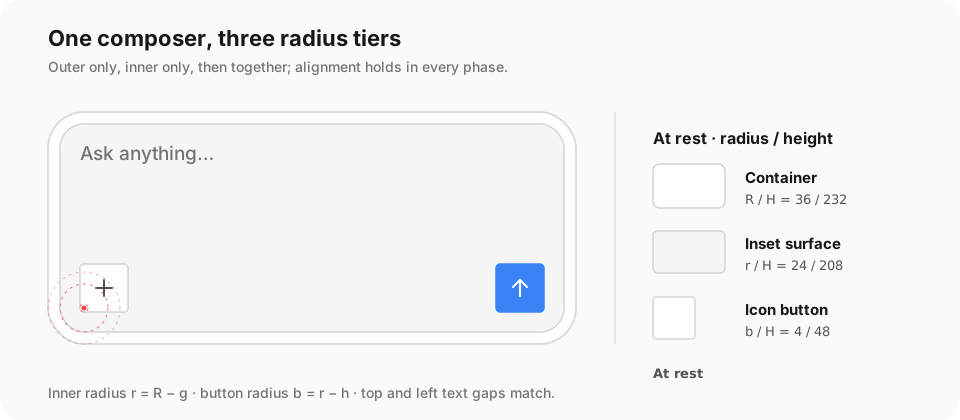
A radius must govern the entire visible surface, not just its border. Exposed corners remain transparent to the
surface behind them; child backgrounds, selection fills, and scrolling content must also follow the boundary. Give
inner surfaces their own radius, or clip the container with `overflow-hidden` (`.overflow_hidden()`), then inspect
the composition against a contrasting background in both themes. Preserve outward focus rings when choosing a clip.
Use a compact spacing scale and repeat it. Related label/control pairs should be closer than separate groups; separate
groups should be closer than separate sections. Prefer the sizes of the app's components (small, default medium,
large) over one-off heights. Use compact variants for toolbars and data-dense screens, not to squeeze an unclear layout
into less space.
The shared semantic scale is intentionally small: spacing progresses through roughly 2, 4, 8, 12, 16, 24, and 32
points, while typography stays near 12, 14, 16, 18, and 20 points. Treat these as relationships rather than permission
to scatter their current values through feature code. Tailwind's spacing scale gives them: one step is 4 points
(`p-4` is 16pt), in classes and typed Rust methods alike; `"spacing"` in `nsh.json`'s `"tailwind"` changes the step of
classes, and typed methods keep Tailwind's default scale. An application that needs a different scale owns it in its
own components or theme tokens (`p-(--gap-card)`) and uses it consistently.
### Spatial grammar
Spacing expresses relationship. Choose a gap from the semantic scale by asking what the two things mean to each other:
| Relationship | Typical class | Current scale | Examples |
| --- | --- | --- | --- |
| Optical correction | `gap-0.5` | 2 pt | icon baseline, compact separator |
| Parts of one control | `gap-1` | 4 pt | menu icon/label, title/description |
| Closely related controls | `gap-2` | 8 pt | button icon/label, dialog actions |
| One content group | `gap-3` | 12 pt | notification columns, compact form rows |
| Separate groups in one section | `gap-4` | 16 pt | panel padding, form groups |
| Separate sections | `gap-6` | 24 pt | major blocks in a page or inspector |
| Major region boundary | `gap-8` | 32 pt | empty-state breathing room, page bands |
These values describe the default scale, not literals to repeat. Use the spacing classes and typed methods (`gap-2`,
`.gap_2()`, `p-4`, `.p_4()`) or the theme's tokens. A product-owned scale should preserve the ordering and
relationships and must be passed through the application's own components rather than written at each call site.
Use these rules when resolving horizontal and vertical space:
1. **Inside before outside.** A component's padding belongs to the component; the gap between components belongs to
their parent.
2. **Vertical rhythm shows grouping.** The gap between a title and its description is smaller than the gap from that
description to the next section. Equal gaps imply equal relationships.
3. **Horizontal space supports scanning.** Repeated rows keep icons, labels, values, badges, and trailing actions on
stable columns.
4. **Leading and trailing are semantic.** Think in reading-order edges and write them as start and end (`ps-*`,
`me-*`, `.ps_4()`), so the layout mirrors right to left.
5. **Do not double padding.** A card placed in an already padded panel should not automatically add another full
panel inset.
6. **Use optical alignment sparingly.** A one- or two-point correction is valid for icon or glyph geometry, but
document why it differs from the scale.
Common compositions illustrate the relationships:
- button contents use 4 pt at small sizes and 8 pt at normal sizes;
- dialog headers and footers use an 8 pt internal gap;
- compact list and menu rows use 4 pt vertical and 8–12 pt horizontal padding;
- sheet headers use about 16 pt leading and 12 pt trailing space, leaving room for a close affordance, while footers
use 16 pt horizontal and 12 pt vertical space;
- notifications use 16 pt horizontal padding and a 12 pt column gap because icon, message, and action are distinct
groups.
Do not treat these as copy-and-paste recipes for every surface. They reveal the system: controls are tighter
internally, rows optimize scanning, and containers spend more space at their boundary than between their contents.
### Proportion and layer hierarchy
Start with content requirements, then set proportions. Avoid arbitrary halves when one pane has a clearly different
role.
- A navigation sidebar should be wide enough for stable labels but visibly subordinate to the work area. Give it a
minimum, preferred, and maximum width (`min-w-*`, `w-*`, `max-w-*`) rather than a percentage alone.
- In master–detail layouts, let the collection remain scannable and give the detail pane the surplus. A roughly
one-third/two-thirds starting point is often useful, but content constraints are authoritative. On a phone the two
become two pages of a `NavStack`.
- Inspectors and auxiliary sheets should not cover the primary object by default. They should be resizable or
dismissible when their content grows; a [`Sheet`](https://nsh.dev/elements/sheet.md) closes with its backdrop, Escape and back.
- Dialog width comes from the decision: an `AlertDialog` for a short confirmation, a medium form, or a dedicated
window/page for complex work. Do not enlarge a dialog simply to create whitespace.
- Reserve the strongest elevation for the topmost decision layer. Within a layer, use background and hairlines—not
successively larger shadows—to show hierarchy.
Define three size constraints for every major region: the minimum at which its task still works, a comfortable
default, and how it consumes surplus. Persist user-controlled splits when they represent workflow preference, and
clamp restored values against the current window.
### Alignment details
Alignment is a structural system, not a final polish pass. Establish a small set of alignment spines for each surface:
shared leading and trailing edges, text baselines, center lines, and fixed functional lanes. Elements at the same level
should attach to the same spine from top to bottom or leading to trailing, even when they are different component
types.
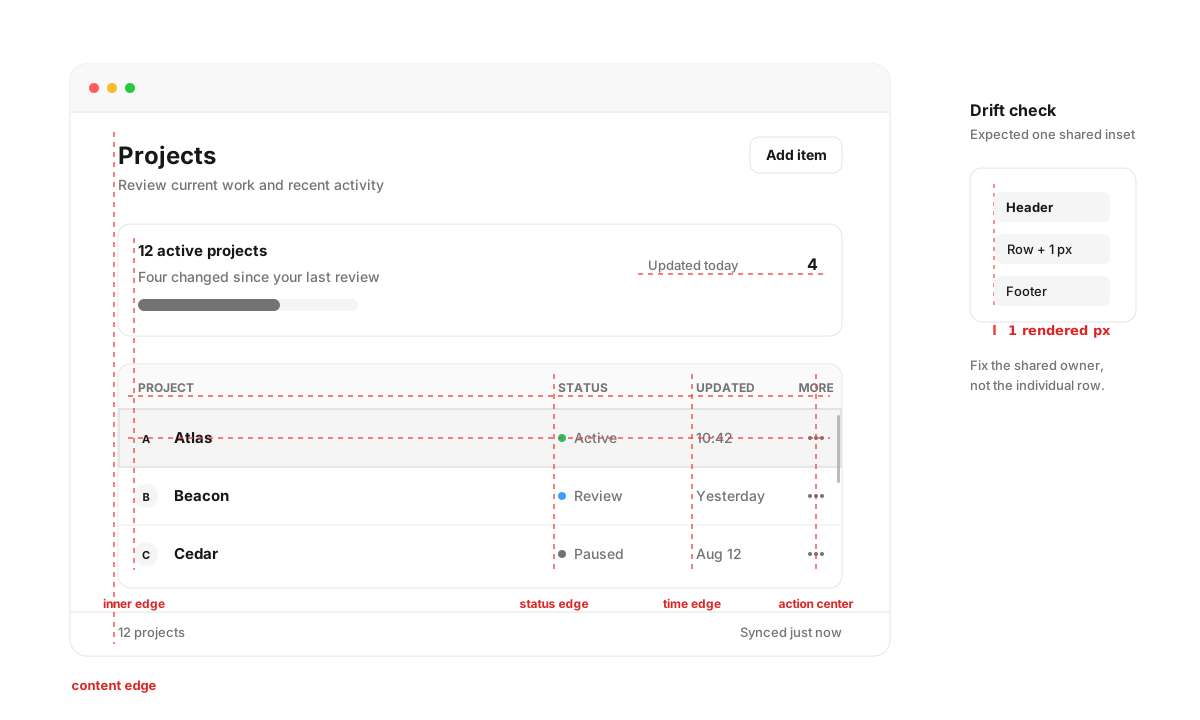
Vertical red lines sit beside shared edges or control centers for content, status, time, and trailing actions.
Horizontal lines sit beneath text baselines or pass through a row center to show bottom and vertical-center alignment.
The compact comparison isolates a one-rendered-pixel drift that must be corrected at its structural owner.
- Give sibling regions a shared content inset. A heading, toolbar, list row, empty state, and footer that describe the
same level should not each invent a slightly different leading edge.
- Repeat column geometry through the whole region. Headers, rows, summaries, loading states, and inline editors should
reserve the same lanes for identity, metadata, status, numbers, and actions.
- Align related controls across rows and sections. Form labels, fields, descriptions, and validation messages should
reveal a stable vertical grid when the page is scanned from top to bottom.
- Keep horizontal bands coherent. Items sharing a toolbar, header, status bar, or row should use one baseline or center
line instead of individually tuned offsets.
- Introduce indentation only for real hierarchy, containment, or disclosure. Decorative indentation makes siblings look
subordinate and breaks the surface's reading line.
- When a nested level ends, return exactly to the parent spine. Do not let accumulated padding drift across nested
containers.
- Preserve the spine through optional content. Missing icons, badges, descriptions, or trailing actions must not move
the remaining labels; use intentional slots or lanes when cross-row comparison matters.
- Align major regions with one another where their hierarchy matches. Sidebar headers, content titles, split panes,
toolbars, and bottom bars need not share every coordinate, but coincident levels should form visible continuous
lines.
Not every edge should align. A child can indent, a primary value can lead its supporting metadata, and a destructive
decision can gain separation. Such exceptions must communicate hierarchy or meaning; they must not result from
uncoordinated component padding. Start with the shared spine, then make the exception explicit.
Treat exact alignment and repeated gaps as quality invariants. When two edges or spaces are intended to be equal, a
one-rendered-pixel difference is a defect, not an acceptable optical approximation. Inspect resolved bounds with a
measurement tool at representative window sizes, text sizes, and display scale factors. Compare coordinates and
distances; do not approve alignment only from a casual screenshot.
The rendered-pixel tolerance is a verification rule, not permission to patch the code with raw point offsets. Equal
relationships should resolve from the same spacing class or method, token, grid definition, or shared component inset.
Fix the common owner when they differ. Account for fractional layout and device rounding (2× and 3× phones, fractional
desktop scales) so intended spines land on the same physical pixel instead of drifting at particular scales.
- Align text by baselines, not by bounding-box centers, when mixed sizes share a row.
- Center icons in a fixed slot so labels do not move when icons differ in intrinsic width.
- Align comparable numbers to the end and use tabular figures (`tabular-nums`); align prose and identifiers to the
start unless the locale requires otherwise.
- Keep trailing row actions and disclosure indicators in fixed-width lanes.
- Align form controls by their interactive frame, not by help text below them.
- Use `justify-between` (`.justify_between()`) only when the two sides truly own opposite edges; it should not
disguise missing structure in the middle.
- Hairlines belong on the boundary owner. Two adjacent regions must not each draw the same separator.
- A scrollbar belongs to the region that scrolls and sits against that panel, editor, or window's trailing edge.
Content padding may inset text and rows; it must not pull the scrollbar into the middle of the surface. Pad the
scroll view's content, not the scroll view.
### Density tiers
Medium is the default. Change density for the whole local context, not one isolated control:
- **comfortable / large:** onboarding, sparse forms, prominent decisions;
- **standard / medium:** most application chrome and workflows, and every touch screen;
- **compact / small:** desktop toolbars, menus, tables, and repeated professional data;
- **extra compact / xsmall:** exceptional high-density utilities, never the automatic choice for an entire application.
Use a bounded scale rather than arbitrary sizing. On touch screens every pressable target is at least 44 × 44 points
([Touch targets](https://nsh.dev/docs/accessibility.md#touch-targets)). With a pointer, buttons commonly move through approximately 24, 28,
and 32 pt frames, inputs extend to about 40 pt at large size, and table rows use about 28, 32, and 40 pt. Give the
app's components a size that changes typography, icon, padding, and hit target together; a custom height that changes
only the outer box is usually incomplete.
### Text size, base font, and points
A well-designed scale preserves hierarchy while text grows. Larger text is successful when the relationship between
title and body, control and icon, inner and outer spacing, primary and secondary regions still feels the same at every
size—not merely when every object becomes larger.
NSH's lengths are points, and the user's text size (Dynamic Type on iOS, font size on Android, the desktops' text
scaling, a host app's own setting) scales text: every text and input that allows font scaling grows, while spacing,
radii, borders and images keep their size ([Text size](https://nsh.dev/docs/device-and-environment.md#text-size)). The app's base text
size (Tailwind's `text-base`, 16 points) is the body size the type scale steps around.
Design in ratios:
- type steps keep the same hierarchy around the base body size;
- spacing steps keep the same grouping relationships around the type;
- control frames and hit targets grow with their labels: size them by their content and a minimum (`min-h-11`), not a
fixed height;
- pane minima and comfortable widths account for larger text;
- corner radii and focus treatment remain optically consistent with the control frame.
Because text grows on its own, a fixed frame around it breaks: a larger label inside a fixed-height button, a larger
document inside fixed pane minima, or larger rows inside a fixed row height destroys the original rhythm and can clip
content. Let rows wrap or switch to a column when text gets large (`fontScale()`, `font_scale()`), and cap the scale
of text that is already large, such as a 34pt title (`maxFontSizeMultiplier`).
As a rule, application layout should not write literal point values (`p-[13px]`, `px(13.0)`). Use the spacing scale
(`p-2`, `gap-3`, `w-64`, `text-sm` and their typed methods) or the app's component sizes. Use literal points only when
the value represents a physical or raster boundary: a hairline, platform window inset, bitmap dimension, minimum
hit-test tolerance, or geometry that must match an external surface. These are audited, documented exceptions. Product
spacing, typography, icon size, and ordinary control geometry stay on the scale.
Test at several text sizes, not just the default. Verify hierarchy, wrapping, truncation, minimum window size, pane
resizing, focus-ring clearance, popup placement, and list row measurement.
### Surfaces and elevation
Use elevation to explain stacking, not importance. The base surface is flat; separators and background contrast define
its regions. Popovers, menus, sheets, dialogs, and notifications may use progressively stronger shadows because they
sit above other content. Do not put a shadow on every card.
All surfaces of the same kind should share one treatment. Give the popup families one themed surface (the `popover`
tokens, the border, `radius` and one shadow) so `Popover`, `Menu`, `ContextMenu` and `Tooltip` do not drift apart.
When an application invents another anchored surface, reuse that treatment instead of approximating it with unrelated
border and shadow literals.
### Typography and icons
Use the platform UI font for interface text and monospace only for code, identifiers, shortcuts, and aligned numeric
data. Keep body text readable and avoid excessive uppercase or letter spacing, especially for CJK text.
Use one icon family in a product. Icons supplement labels; they should not replace unfamiliar actions with guesswork.
Icon-only buttons always need an accessible name (`accessibilityLabel`). Their visual explanation follows the tooltip
policy below. Use filled or colored icons to communicate a state, not merely to make a toolbar lively.
## Layout patterns
### Choose a stable shell
Most applications should use one of these shells:
- **single workspace:** a header or toolbar above one primary view;
- **navigation stack:** pages pushed and popped (`NavStack`), with the system's back gesture on phones;
- **sidebar workspace:** persistent navigation beside a changing detail view;
- **master–detail:** resizable collection and detail panes, two pages on a phone;
- **document workspace:** tabs for multiple long-lived objects;
- **utility window:** one focused task with a short, fixed action path.
Keep global navigation stable while content changes. Give the primary work area the remaining space with `flex-1`
(`.flex_1()`) and `min-w-0` / `min-h-0` where overflowing children must shrink. Use `Scroll` and `List` for their
intended behavior instead of rebuilding scrolling or virtualization from nested views.
On the desktops, a title bar of the app's own ([`nsh/desktop`](https://nsh.dev/modules/nsh-desktop.md)) is window chrome first.
Preserve its drag region (`.window_drag(true)`) and avoid binding ordinary title clicks to infrequent editing
commands. Rename belongs behind an explicit object command, with a keyboard path where appropriate.
### Responsive windows
A window can be any size: the user, a split view or the host app decides it. Decide what happens as a window narrows:
1. preserve the primary task;
2. allow resizable regions to reach a documented minimum;
3. collapse secondary labels or inspectors;
4. move low-frequency actions into a menu;
5. scroll only the region whose content actually overflows.
Do not hide an action without providing another path to it. Avoid making the entire window scroll when only a list or
document body should scroll. Breakpoints (`md:`, `lg:`) and `windowSize()` (`window()` in Rust) follow the surface NSH
renders into.
NSH's flex layout has the same intrinsic-size pressure found in other layout systems: a `flex-1` child may still refuse
to shrink around long content. Design and implementation must agree on which panes may shrink, truncate, wrap, or
scroll. A clipped region also clips an outward focus ring; never trade away keyboard visibility merely to simplify
overflow.
### Forms and settings
Use a visible label for each field and place help or validation next to the field it describes. Align related fields,
but do not force long labels into a narrow fixed column. Use the appropriate control: `Checkbox` for independent
choices, a [`RadioGroup`](https://nsh.dev/elements/radio.md) of `Radio`s for a small visible set, a `Menu` of choices for a longer set,
and [`Switch`](https://nsh.dev/elements/switch.md) for a setting that takes effect immediately. Their parts (the switch's track and
thumb, the checkbox's indicator) are the app's to style, with `checked:`, `indeterminate:` and `disabled:` classes
that follow the control:
```rust
use nsh_base::{switch, theme};
fn setting_switch(label: &'static str, on: Signal) -> impl IntoElement {
switch()
.checked(on)
.on_change(move |next: &bool| on.set(*next))
.flex_row()
.items_center()
.gap_3()
.track_style(|s| {
s.w(px(44.0))
.p(px(2.0))
.rounded_full()
.bg(move || theme().muted)
.transition_colors()
.checked(|s| s.bg(move || theme().primary))
})
.thumb_style(|s| {
s.size(px(20.0))
.rounded_full()
.bg(move || theme().background)
.shadow_sm()
.transition_transform()
.checked(|s| s.translate_x(px(20.0)))
})
.child(text(label).text_color(move || theme().foreground))
}
```
```tsx
import { Text } from "nsh";
import { Switch } from "nsh/base";
function SettingSwitch(props: { label: string; on: boolean; onChange: (on: boolean) => void }) {
return (
{props.label}
);
}
```
A "select all" checkbox shows a partial selection with its indeterminate state:
```rust
use nsh_base::{checkbox, theme};
fn select_all(selected: Signal, total: usize) -> impl IntoElement {
checkbox()
.checked(move || selected.get() == total)
.indeterminate(move || selected.get() > 0 && selected.get() < total)
.on_change(move |all: &bool| selected.set(if *all { total } else { 0 }))
.flex_row()
.items_center()
.gap_2()
.indicator_style(|s| {
s.size(px(20.0))
.items_center()
.justify_center()
.rounded(move || theme().radius)
.border_2()
.border_color(move || theme().border)
.checked(|s| s.bg(move || theme().primary).border_color(move || theme().primary))
.indeterminate(|s| s.bg(move || theme().primary).border_color(move || theme().primary))
})
.indicator(text(move || mark(selected.get(), total)).text_color(move || theme().primary_foreground))
.child(text("Select all").text_color(move || theme().foreground))
}
fn mark(selected: usize, total: usize) -> &'static str {
if selected == total { "✓" } else if selected > 0 { "–" } else { "" }
}
```
```tsx
import { Text } from "nsh";
import { Checkbox } from "nsh/base";
function SelectAll(props: { selected: number; total: number; onChange: (all: boolean) => void }) {
return (
0 && props.selected < props.total}
onChange={props.onChange}
class="flex-row items-center gap-2"
indicatorClass="size-5 items-center justify-center rounded-(--radius) border-2 border-border checked:border-primary checked:bg-primary indeterminate:border-primary indeterminate:bg-primary"
indicator={
{props.selected === props.total ? "✓" : props.selected > 0 ? "–" : ""}
}
>
Select all
);
}
```
Disable submission while an operation is in flight, keep the user's input, and show the result near the action. Keep
inputs above the software keyboard (`KeyboardAvoidingView`). Reserve dialogs for short, focused decisions; use a full
page or sheet for workflows that need exploration or many fields.
A loading treatment must represent actual waiting. Switching between settings panels whose content is already
available should be immediate; a skeleton is appropriate only while content is genuinely loading and its shape is
known.
## Components and composition
Follow the Shadcn principle that components are building material rather than a sealed design system. `nsh/base`
supplies behavior; the app supplies coherent defaults in its own components and owns composition and product
semantics.
- Use component variants by meaning. Primary is reserved for the explicit default commit in a decision area—normally
the action invoked by Return on the desktops. A lone, frequent, or desirable action is not automatically primary. An
`Add` command in a management toolbar normally uses a default button; a form's default `Create` commit may use
primary. Use destructive for destructive commitment and ghost for quiet toolbar actions.
- Prefer explicit parts and slots over styling arbitrary descendants.
- Keep a repeated pattern consistent across the product. Wrap it in an application component when it carries domain
language or policy.
- Use the standard component for its semantic role. `Menu`, `ContextMenu`, `Popover`, `Sheet`, `Dialog` and
`AlertDialog` are not interchangeable boxes; each owns different selection, focus, keyboard, dismissal, and layout
contracts, and takes its own form on each device.
- Preserve the component family's geometry. Menu rows share vertical and horizontal padding, height, icon and
checkmark slots, separators, radius, and state treatment. Do not imitate one menu with a custom popup whose spacing
only approximates the system.
- Do not wrap a component merely to rename every prop or freeze all of its capabilities.
- Move reusable behavior without product styling to `nsh/base`, or to a crate the app's products share; keep themed,
opinionated presentation in the application's components.
```rust
use nsh_base::{button, theme};
/// The footer of a form: a default Cancel and the primary commit.
fn form_actions(cancel: impl Fn() + 'static, create: impl Fn() + 'static) -> impl IntoElement {
view()
.flex_row()
.justify_end()
.gap_2()
.child(
button()
.on_press(cancel)
.rounded(move || theme().radius)
.border_1()
.border_color(move || theme().border)
.px_4()
.py_2()
.active(|s| s.bg(move || theme().muted))
.child(text("Cancel").text_color(move || theme().foreground)),
)
.child(
button()
.on_press(create)
.rounded(move || theme().radius)
.bg(move || theme().primary)
.px_4()
.py_2()
.active(|s| s.bg(move || theme().primary.opacity(0.9)))
.child(text("Create").text_color(move || theme().primary_foreground)),
)
}
```
```tsx
import { Text, View } from "nsh";
import { Button } from "nsh/base";
// The footer of a form: a default Cancel and the primary commit.
function FormActions(props: { onCancel: () => void; onCreate: () => void }) {
return (
);
}
```
## Interaction states
### Make the result understandable before the click
A control should predict its result. Use familiar platform controls and placement so people can act without learning
the interface first. Its label names the action and object, its state shows availability, and its feedback confirms
the same outcome.
Do not label a Button `Save` if it opens a configuration flow, or `Delete` if it only removes an item from a group.
Name the scope when context does not make it clear. Respond immediately to activation, prevent duplicate submission
during longer work, and show the result near the object that changed. Add a success message only when the result
itself is not visible.
Every interactive control should be designed for:
| State | NSH | Design requirement |
| --- | --- | --- |
| Rest | | Clear affordance without visual noise |
| Hover | `hover:` | Subtle pointer feedback, never the only cue |
| Pressed | `active:` | Immediate press feedback, styled by the app |
| Open / pressed | the popup's `open` | Persistent feedback while an attached popup is open |
| Focus visible | `focus-visible:` | High-contrast keyboard focus ring |
| Selected / checked | `selected:`, `checked:` | Persistent state distinct from hover |
| Disabled | `disabled:` | Lower emphasis and no misleading hover/pressed response |
| Loading | | Preserve context, prevent duplicate action, explain long waits |
| Error | | State what happened and how to recover |
Bind commands that should work from the keyboard with [`nsh/keymap`](https://nsh.dev/modules/nsh-keymap.md) on the desktops and
the web. Match familiar platform shortcuts (`"mod+k"` is Command on macOS, Control elsewhere), expose shortcuts in
menus or tooltips, and keep focus in a logical place after opening or dismissing an overlay.
Selection is part of the information model, not optional polish. Tabs, segmented choices, selectable rows, filters,
and navigation destinations must show a persistent selected state (`selected`, which screen readers announce). A
button that owns a menu must remain visibly pressed or open until the popup closes; hover alone cannot explain the
relationship between trigger and surface.
```rust
use nsh_base::{tab, theme};
fn section_tab(label: &'static str, id: Section, current: Signal) -> impl IntoElement {
let selected = move || current.get() == id;
tab()
.selected(selected)
.on_press(move || current.set(id))
.rounded(move || theme().radius)
.px_3()
.py_2()
.selected_style(|s| s.bg(move || theme().muted))
.child(text(label).text_color(move || {
if selected() { theme().foreground } else { theme().muted_foreground }
}))
}
```
```tsx
import { Text } from "nsh";
import { Tab } from "nsh/base";
function SectionTab(props: { label: string; selected: boolean; onPress: () => void }) {
return (
{props.label}
);
}
```
In a segmented control, the selected fill and unselected surface must share the container's silhouette. Neither may
square off an end corner or make a boundary appear heavier than its peers.
Show a selected navigation item, list row, or tab through the item's own surface: a selected fill, stronger
foreground, or heavier weight. Do not add a leading-edge bar or one-sided border as the selection marker. It is a web
template habit, not a native convention; it breaks the item's rounded silhouette and adds a second, competing edge to a
column that already aligns on its text.
For destructive actions, distinguish between reversible and irreversible work. Prefer undo or a temporary notification
for reversible changes. Use an [`AlertDialog`](https://nsh.dev/elements/alert-dialog.md) when the consequence is serious and cannot
be undone; name the specific object and consequence in the confirmation copy.
### Pointer conventions
Use the default cursor for buttons, checkboxes, menu items, tabs, and other controls. Use a pointing hand
(`cursor-pointer`) for links and content that behaves as a link. Use text, resize, grab, and prohibited cursors only
when they describe the active manipulation. A cursor reinforces an affordance; it does not replace the control's
visible state or accessible role.
Keep hover effects modest because touch, keyboard, and accessibility interaction have no hover. Do not reveal the only
copy of a destructive or essential action on hover. Contextual row actions may become quieter at rest if the same
commands remain available through selection, keyboard, or a context menu.
### Prefer command surfaces over hover toolbars
Use command frequency and scope to choose where an action lives:
- keep the primary or frequent action visible as a labeled button or familiar toolbar control;
- put secondary actions for the current region behind a visible [`Menu`](https://nsh.dev/elements/menu.md) trigger;
- put commands that act on the object under the pointer or finger in a `ContextMenu`: a right click on the desktops,
a held finger on touch screens;
- expose the same important command through a keyboard shortcut ([`nsh/keymap`](https://nsh.dev/modules/nsh-keymap.md)) when it has
a natural keyboard form, and in the application menu (`Menu.setApplicationMenu` from
[`nsh/desktop`](https://nsh.dev/modules/nsh-desktop.md));
- use a hover-revealed icon only as a shortcut to a command that remains reachable elsewhere.
This is more than a visual preference. `nsh/base`'s menus already own placement at the trigger, cascading submenus on
the desktops and a sheet with submenus in place on phones, dismissal by choosing an item, a press outside, Escape or
back, and the menu and menu item roles for screen readers. A custom strip of hover buttons must rebuild those behaviors
and is invisible to touch, keyboard-only, and many assistive technology workflows.
```rust
use nsh_base::{menu, menu_item, menu_separator, theme};
use nsh_core::{color::black, ui::StyleRefinement};
/// The app's popup surface, shared by its menus, popovers and tooltips.
fn popup(s: StyleRefinement) -> StyleRefinement {
s.min_w(px(192.0))
.p_1()
.rounded(move || theme().radius)
.border_1()
.border_color(move || theme().border)
.bg(move || theme().popover)
.shadow_lg()
}
fn item(label: &'static str, on_select: impl Fn() + 'static) -> impl IntoElement {
menu_item()
.on_select(on_select)
.px_3()
.py_2()
.rounded(move || theme().radius)
.hover(|s| s.bg(move || theme().muted))
.active(|s| s.bg(move || theme().muted))
.child(text(label).text_color(move || theme().foreground))
}
fn more_menu(rename: impl Fn() + 'static, duplicate: impl Fn() + 'static, delete: impl Fn() + 'static) -> impl IntoElement {
menu()
.offset(px(4.0))
.popup_style(popup)
.backdrop_style(|s| s.bg(black().opacity(0.5)))
.trigger(
view()
.label("More actions")
.size(px(44.0))
.items_center()
.justify_center()
.rounded_full()
.active(|s| s.bg(move || theme().muted))
.child(text("⋯").text_color(move || theme().foreground)),
)
.child(item("Rename…", rename))
.child(item("Duplicate", duplicate))
.child(menu_separator().h(px(1.0)).my_1().bg(move || theme().border))
.child(item("Delete…", delete))
}
```
```tsx
import { Text, View } from "nsh";
import { Menu, MenuItem, MenuSeparator } from "nsh/base";
/** The app's popup surface, shared by its menus, popovers and tooltips. */
export const popup = "min-w-48 rounded-(--radius) border border-border bg-popover p-1 shadow-lg";
const item = "rounded-(--radius) px-3 py-2 hover:bg-muted active:bg-muted";
function MoreMenu(props: { onRename: () => void; onDuplicate: () => void; onDelete: () => void }) {
return (
);
}
```
Choose `Menu` when users need a visible indication that more commands exist—for example a toolbar overflow, document
actions, or account menu. Choose `ContextMenu` for selection- or object-scoped commands such as rename, duplicate,
reveal, or remove. The context menu must not be the only way to perform an essential command; provide a menu-bar,
toolbar, keyboard, or detail view path as appropriate.
Do not put every action into a menu to make a screen look minimal. Discovery and speed matter: the main action stays
visible, dangerous items remain clearly labeled and separated, and a menu item should use the same verb, icon,
shortcut, enabled state, and result everywhere it appears.
### Button means application action; Link means external resource
Use a `Button` when activation changes application state, confirms a decision, opens a tool, submits data, or runs a
command. Choose its treatment by local hierarchy:
- primary button for the one emphasized commitment in a decision area;
- default button for ordinary visible actions;
- outline button when an action needs a clear boundary with less emphasis;
- ghost button for familiar, low-emphasis toolbar and inline actions;
- icon button only for a well-known symbol, with an accessible name and a tooltip when meaning or scope is unclear.
Do not assign primary because a button is the only action on screen, because it is placed at the top right, or
because the team wants more clicks. Primary communicates default commitment and keyboard behavior. If activation is
merely an ordinary command such as adding an item, opening a tool, or refreshing a view, use a default, outline, or
ghost button according to its local hierarchy.
Use an underlined link (`role="link"`) only for an external resource target: a URL, web page, online documentation, or
email address. It uses the pointing-hand cursor because its contract is leaving the current application context for
that resource. Do not use link styling to make a functional command look quiet. A link-shaped Delete, Save, Refresh,
Add, Open-menu, or in-app navigation action hides the control's affordance and exposes the wrong accessibility role.
“View” does not make an in-app destination a link. A full report, analysis, details panel, or local record still opens
through a button, row, card, tab, or disclosure control. Use concise context-aware labels such as `Full analysis` when
the containing card already establishes what opens; reserve underlining for a resource that actually opens in a browser
or mail client.
All internal navigation—sidebar rows, tabs, breadcrumbs, list items, opening a local view, or switching
workspaces—must use the navigation stack, a `Button`, or the corresponding component. Visual emphasis is chosen through
the button's variant or the navigation component's selected state, never by lying about semantics.
## Feedback and overlays
Choose the smallest surface that fits the decision:
- tooltip: a short explanation or shortcut ([`Tooltip`](https://nsh.dev/elements/tooltip.md), or any element's `tooltip`);
- popover: contextual controls that do not interrupt the task ([`Popover`](https://nsh.dev/elements/popover.md));
- menu: a compact list of actions ([`Menu`](https://nsh.dev/elements/menu.md));
- notification: asynchronous status that does not require a decision;
- dialog: a focused decision or short form ([`Dialog`](https://nsh.dev/elements/dialog.md));
- alert dialog: explicit confirmation of a consequential action ([`AlertDialog`](https://nsh.dev/elements/alert-dialog.md));
- sheet: supplementary work that benefits from more persistent space ([`Sheet`](https://nsh.dev/elements/sheet.md)).
Each takes the form its device expects, from one structure the app styles (`popupClass`, `backdropClass`):
| | Desktops | Phones and tablets |
| --- | --- | --- |
| `Tooltip` | after the pointer rests on the element | only when the app opens it |
| `Popover` | anchored; a press outside closes it and goes on | anchored; a press outside only closes it |
| `Menu` | a popup at the trigger, cascading submenus | a sheet at the bottom; a submenu takes the place of its items |
| `ContextMenu` | the secondary button, at the pointer | a held finger opens the sheet |
| `Sheet` | an edge panel over a backdrop | the same |
| `AlertDialog` | an alert in the platform's dialog style | the system's alert or action sheet |
A tooltip supplies missing meaning; it does not restate an obvious action. Reserve it for an unfamiliar symbol,
ambiguous scope, or a useful shortcut that is otherwise hidden. Repeated, recognizable commands such as Copy and
Download in a message footer need accessible names and keyboard access, but their hover labels add interruption rather
than clarity. Phones show a tooltip only when the app opens it, so a tooltip must never carry what a touch user needs.
An alert interrupts the visual hierarchy even when it does not open a modal. Use it for important, exceptional
information that needs attention in the current task, not as a decorated container for ordinary descriptions, tips,
or empty space. Prefer inline help, muted text, or a normal section when the content does not require immediate notice
or action.
Avoid stacking overlays. Escape and the Android back button dismiss the topmost dismissible layer; keep the app's state
in sync from `onOpenChange`, and return focus to the trigger or the next logical target.
An overlay action must refer to an object or state the overlay actually shows. For example, expose `Clear history`
only when a distinct recent-history section is visible and contains entries. Search results, recent items, and
favorites are different collections; label and separate them instead of merging them into one unexplained list. Hide
an inapplicable action or disable it with a useful reason—do not park an ambiguous trash icon in a footer.
Footer space is not a catch-all for capabilities that lacked a place in the design. A footer may present shortcuts,
status, or actions that apply to the whole surface, but each item must answer: what is its object, why is it available
now, what scope does it affect, and what visible state changes after activation?
## Motion
Motion explains change; it is not ambient decoration. Use short transitions for appearance, dismissal, expansion, and
spatial continuity. Avoid animating large layout changes when opacity or transform communicates the same relationship.
Honor reduced-motion preferences (`motion-reduce:`, `reduceMotion()`), never require animation to understand state,
and do not add a default animation to every component.
```rust
view()
.on_press(open)
.transition_transform()
.duration(150.0)
.when(!reduce_motion(), |v| v.active(|s| s.scale(0.97)))
```
```tsx
```
Motion policy belongs to the application layer. `nsh/base` owns the lifecycle mechanism or geometry needed for a
transition, but it does not decide that every product fades or slides. Give independently animated values stable
identity, and make interruption reverse smoothly from the currently sampled value rather than restarting from an old
endpoint.
Motion follows the continuity of the interaction. While a pointer or scroll position moves among related targets, keep
the preview surface stable and update its content or position in place. Dismiss it only after the interaction ends;
repeated fade-out and re-entry on each update reads as flicker.
## Designing data-heavy interfaces
Dense does not mean cramped. In tables, trees, long lists, and editors:
- keep headers and primary row identity visually stable;
- align comparable values and use tabular numerals where appropriate;
- distinguish focus, hover, active row, and multi-selection;
- keep sorting and filtering visible and reversible;
- preserve selection by domain identity across filtering and reordering;
- virtualize large collections (`List`) without changing keyboard semantics;
- use progressive disclosure for secondary columns and inspectors;
- provide a useful empty state that explains the next action.
Choose a table for comparison across consistent fields, a list for scanning heterogeneous items, and a tree for real
hierarchy. Do not use a complex data layout as a visual style.
## Interface language
Words are part of the interface architecture. Write the vocabulary for a feature as a system—destinations, objects,
commands, states, and outcomes—not as isolated translations of implementation features. Prefer the shortest wording
that remains accurate in its actual context.
### Let context carry context
Do not repeat information that the surrounding surface already establishes. A sidebar destination is usually the
object or domain itself: use `Users`, not `User Management`; `Shortcuts`, not `Shortcut Configuration Management`. A
column whose rows already contain actions can omit a generic `Operation` heading. A dialog titled `Delete “Roadmap”?`
does not need body text that asks the same question again.
This is context economy, not deletion for its own sake. Add text when it changes the decision: identify the affected
scope, an irreversible consequence, an unusual prerequisite, or a way to recover. Every extra word should answer a
question the current layout does not already answer.
Use nouns for destinations and objects (`Users`, `Appearance`, `Orders`), verbs for commands (`Save`, `Duplicate`,
`Export`), and adjectives or short phrases for states (`Offline`, `Up to date`, `Pending review`). Avoid wrappers such
as `Management`, `Module`, `Page`, `Function`, `Operation`, and `System` unless the word distinguishes a real domain
concept.
### Write each language, do not translate its shape
Start from shared intent, hierarchy, and terminology, then compose each locale as natural interface language. Do not
preserve the source language's word order, number of words, politeness filler, or grammatical category. English
`Users` can express a Chinese feature concept that would literally expand to “user management”; fidelity means
preserving purpose, not preserving tokens.
Remove words supplied by the enclosing information architecture. Inside a `Settings` surface, a destination is often
simply `Account`, not `Account Settings` and never the unnatural singular `Account Setting`. The correct English label
is chosen from its role and neighbors, not from the standalone source phrase.
Maintain a small product lexicon for recurring objects, commands, and states. Use the same term in the toolbar, menu,
context menu, dialog, shortcut search, and documentation unless the context genuinely changes its meaning. Review copy
in the rendered surface: neighboring labels often reveal repetition or inconsistent scope that a locale file cannot.
In localized technical writing, preserve an established framework term when a translation would be less precise. Keep
API identifiers in their original form and format them as code. Do not retain ordinary foreign words merely to sound
technical. Explain a retained term on first use when needed, then use the same form throughout the interface,
documentation, and API examples.
In documentation, use the exact English name for a named API, component, source file, or guide in link text, including
localized pages. For example, write `View`, `Button`, `Menu`, and `Text` rather than translating their names or adding a
redundant `NSH` prefix. Keep surrounding explanations in the page's language. Link only the named target; place words
such as “source” outside the link when they describe why it is cited.
In a technical comparison table shared across locales, keep capability names, framework names, API names, and model
names in their established English form. Translate the explanation around the table, not its technical labels. Common
interface words with an established local name may still be localized outside that comparison context.
### Buttons and confirmation dialogs
Button labels are short by default—usually one or two words—and describe the result, not the gesture or the component.
Prefer `Save`, `Move`, or `Delete` to `Click to save`, `Perform move`, or `Confirm deletion`. Use `Cancel` consistently
for the action that leaves without committing. Reserve `OK` for acknowledging purely informational content.
Short is a default, not a character limit. A deliberately longer label is better when its words expose a consequence
or distinguish choices that users could otherwise confuse, for example `Delete from this group` versus `Delete
everywhere`, or `Restart without saving`. Length must buy decision-critical information; it must not restate the
dialog title or body.
Use the most specific concise result as the confirmation label when possible:
| Context | Weak | Prefer |
| --- | --- | --- |
| Delete dialog | `Yes`, `Sure`, `Confirm deletion` | `Delete` |
| Unsaved changes | `Confirm`, `Yes` | `Discard changes` |
| Pure acknowledgement | `Confirm operation` | `OK` or `Done` |
| Complex consent whose result has no clear verb | `Yes` | `Confirm` |
`Confirm` is a useful fallback when the surrounding dialog fully names a complex commitment and no shorter result verb
is accurate. It should not replace a clear command. `Sure` is conversational rather than a stable English command and
is too ambiguous for the standard vocabulary.
A confirmation dialog should form one compact decision:
- title: the decision or condition, such as `Delete “Roadmap”?`;
- body: only new scope, consequence, or recovery information;
- actions: `Cancel` and the result, such as `Delete`;
- destructive styling: applied to the destructive result (an `AlertDialog` action with the `destructive` role), not
substituted for precise wording.
Avoid generic titles such as `Notice`, `Warning`, `Error`, and `Confirmation` when the actual condition can be named.
Avoid ritual phrases such as “Are you sure you want to…”, “Would you like to…”, “Please note that…”, and
“successfully” when the structure or state already communicates them. Courtesy should come from a calm, respectful
tone, not repeated `please`.
### Capitalization, punctuation, and symbols
Use sentence case for English UI by default: `Reset layout`, not `Reset Layout` or `RESET LAYOUT`. Preserve proper
nouns and established acronyms. Follow a platform convention such as title case for native menu commands only when the
platform integration benefits from it, and apply that convention consistently within the component class.
ALL CAPS can provide restrained typographic emphasis for very short section labels, eyebrows, statuses, established
acronyms, and code-like identifiers. Its compact shape and measured tracking can form a level similar to bold type, but
it does not belong on buttons, long headings, sentences, or dense lists. Do not combine uppercase, strong color, and
bold weight in the same region, and do not transform every string automatically: product names, acronyms, and
localized content must preserve their intended casing.
Labels, buttons, menu items, tabs, headings, placeholders, and short states do not take a final period. Complete
explanatory, warning, and error sentences do. Avoid exclamation marks in routine success and failure messages. In
Chinese, use full-width punctuation in sentences and omit terminal punctuation from short control labels by the same
semantic rule.
Use the single ellipsis character (`…`), not three periods. Append it to every button or menu item that opens a dialog,
sheet, or separate window, and to a command that requires more input or choices before it can complete, such as
`Settings…` or `Export…`. An immediately executed command does not take an ellipsis. Use an indeterminate progress
indicator, not decorative dots, to communicate ongoing work.
Errors should say what happened and, when useful, the next recovery action. Success feedback should name the resulting
state only when that state is not already visible. Prefer `Couldn’t save. Check your connection and try again.` to a
technical code or a long apology; omit a `Saved successfully` toast when the document visibly becomes saved.
## Internationalization and platform fit
Accessibility (A11y) names and labels may remain in English; localization is not required for these strings. Keep the
item's own label when naming a control that acts on it, even when that label is localized. This exception does not
apply to visible UI copy.
Copy must survive expansion, CJK typography, right-to-left scripts, and different shortcut notation. Do not size a
control from one English label. Keep text out of raster assets, avoid concatenating translated fragments, and let
labels wrap or truncate only where the product defines a recovery path such as a tooltip.
Respect platform differences that carry meaning: Command versus Control, native window decorations, system
appearance, scrollbar behavior, menus, notification capabilities, and on phones the system header, back gesture, and
alerts. Keep the product's information architecture stable across platforms, but do not erase familiar platform
behavior for superficial pixel equality.
NSH apps run on phones, tablets, desktops, and the web, and often inside a host app. Design for each:
- **System UI keeps the platform's look.** On iOS and Android a page's header is the system's (`NavPage`'s `title` and
header options); the desktops and the web show the page's `header` slot, which the app draws. Give every page both
([Navigation](https://nsh.dev/docs/navigation.md#navpage-and-the-header)). Confirmations use `AlertDialog`; the status bar follows the
page or dialog on top (`statusBar`).
- **The host's theme.** An embedded app can be given its host's theme; classes and Rust bindings that read tokens
follow it natively ([Theme tokens](https://nsh.dev/docs/tailwind.md#theme-tokens)).
- **Safe areas and the keyboard.** Keep content inside the safe area (`SafeAreaView`, `safeAreaInsets()`) and inputs
above the software keyboard (`KeyboardAvoidingView`) ([Device and environment](https://nsh.dev/docs/device-and-environment.md)).
- **Appearance, text size, and motion.** Every surface works in light and dark (`dark:`, `colorScheme()`), at the
user's text size, and with reduced motion (`motion-reduce:`, `reduceMotion()`).
- **Right to left.** The layout direction follows the locale, and the `direction` style sets it for a view and its
subtree; start and end properties mirror ([Right to left](https://nsh.dev/docs/layout.md#right-to-left)).
- **Touch and pointer.** Touch targets are at least 44 × 44 points; hover and tooltips exist only with a pointer.
```rust
use nsh_base::nav_page;
nav_page()
.title("Inbox")
.header(page_header("Inbox"))
.child(inbox())
```
```tsx
import { NavPage } from "nsh/base";
}>
```
## Guidance for AI-generated interfaces
An AI changing an NSH interface should first inspect the nearest feature, the app's components and theme tokens, and
the component documentation and declarations (`.nsh/types`). It should state the primary task, state owner, component
composition, and keyboard and touch paths before generating code. It must not infer an API from React, React Native
or Shadcn examples or invent an NSH prop or method because the name seems plausible; `nsh check` and the build's class
check report what does not exist.
AI output is incomplete until a human can explain why the hierarchy, density, component choice, and exceptional
literal values belong in this product. A visually plausible screenshot is not proof: keyboard and touch behavior,
focus, dynamic content, themes, resizing, text size, and failure states are part of the design.
## Accessibility checklist
Before considering a screen complete, verify that:
- every action is reachable and operable by keyboard, touch, and screen reader;
- focus order follows visual and task order;
- focus remains visible and is restored after overlays;
- controls have accessible names; icon-only controls use tooltips when their meaning, scope, or shortcut needs
explanation;
- text and meaningful boundaries have sufficient contrast;
- status is not communicated by color alone;
- disabled and read-only states are distinguishable;
- labels, errors, and descriptions remain near their controls;
- content remains usable with longer translations, right to left, and larger text;
- touch targets are at least 44 × 44 points, and pointer targets are comfortably sized even in a dense layout.
## Design review checklist
A review does not inventory components; it judges whether the interface made the right decisions. Ask, in order:
1. **Is the task clear?** Can a new user recognize the purpose, primary action, and next step without learning,
guessing, or experimenting?
2. **Does every action keep its promise?** Do the label, control, state, scope, feedback, and result describe one
consistent outcome?
3. **Is hierarchy decisive and restrained?** Does the core feature receive the space it deserves while strong color,
bold type, badges, alerts, and primary buttons remain scarce?
4. **Could the interface do less, better?** Can an entry point, option, or state be removed, combined, or deferred
without weakening the complete task?
5. **Is the structure exact?** Do peers share alignment spines, equal gaps stay equal to the rendered pixel, and
scrollbars sit at the edge of their actual scrolling region?
6. **Does it follow the component system?** Do standard controls retain their geometry, states, keyboard behavior, and
dismissal model, with appearance supplied by theme and scale tokens?
7. **Does it remain usable in every state and constraint?** Verify keyboard, touch and focus behavior,
empty/loading/failure/permission states, longer translations, larger text, right to left, both appearances,
minimum window size, and reduced motion.
8. **Has it been tested on real platforms?** Complete the task with real components, copy, and representative content
on each platform it ships to (`nsh run --target …`, `nsh test --target …`)—not only an ideal screenshot.